

These features are only supported when using the official bunny.net plugin and
managing DNS through bunny.net. They are not compatible with third-party
plugins or external DNS providers.
Prerequisites
- A bunny.net account
- Access to manage your domain’s DNS settings
Step 1: Migrate your domain to Bunny DNS
Skip this step if your domain is already using Bunny DNS.Add a DNS zone
Log in to bunny.net and go to Delivery → DNS → Add DNS Zone. Enter your
domain name and click Add DNS Zone.
Add your DNS records
Follow the setup instructions, then click Okay, I’m done. Click Add
Record, enter the required details, and continue adding records as needed.
Verify propagation
Confirm your DNS settings have propagated using the bunny DNS Lookup
Tool. Look for NS records pointing to
kiki.bunny.net or coco.bunny.net.Step 2: Enable CDN Acceleration in the plugin
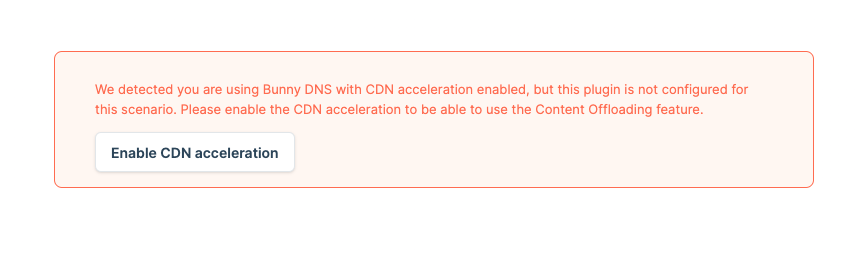
If your domain was already using Bunny DNS when you installed the plugin, the
“Enable CDN Acceleration” option may not appear. Skip to Step 3 to check if
it’s already enabled. If not, you can reset the plugin to start the
configuration from scratch.
Enable CDN Proxy on DNS records
In the bunny.net dashboard, go to the DNS section. Click the button in the CDN Proxy (or CDN acceleration) column next to each DNS record.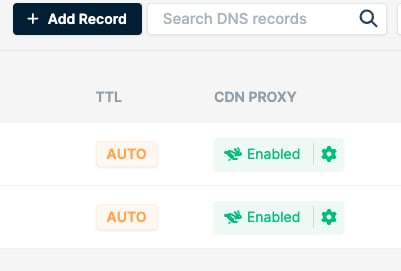
Step 3: Confirm CDN Acceleration is working
Verify your setup using any of these methods:- In the bunny.net DNS section, a green CDN Proxy icon next to your DNS record indicates proper CDN integration.

- Inspect response headers from your site. Look for:
CDN-ProxyVer: 1.04CDN-RequestPullSuccess: TrueCDN-RequestPullCode: 200
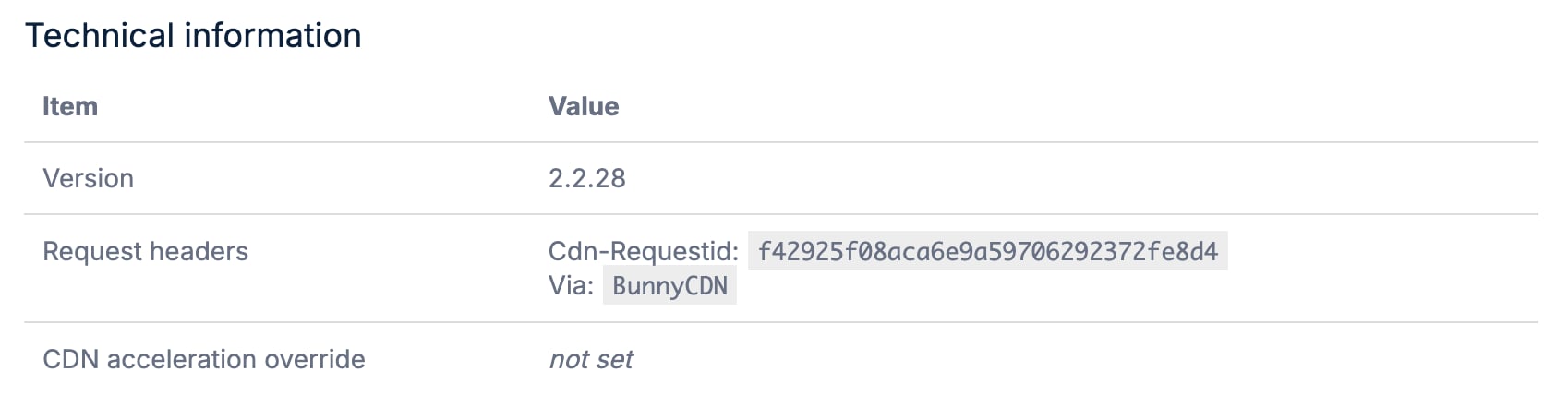
- In your WordPress Admin Panel, go to bunny.net → About. Under Technical Information, check the Request Headers section. If you see both
Cdn-RequestIdandVia: BunnyCDN, everything is working.
Next steps
Enable Offloader
Offload media files to Bunny Storage for scalable, globally replicated
delivery.
Enable Shield
Turn on WAF and DDoS protection with Bunny Shield.